Make Your Computer Run Like New: Essential Performance Boost Tips

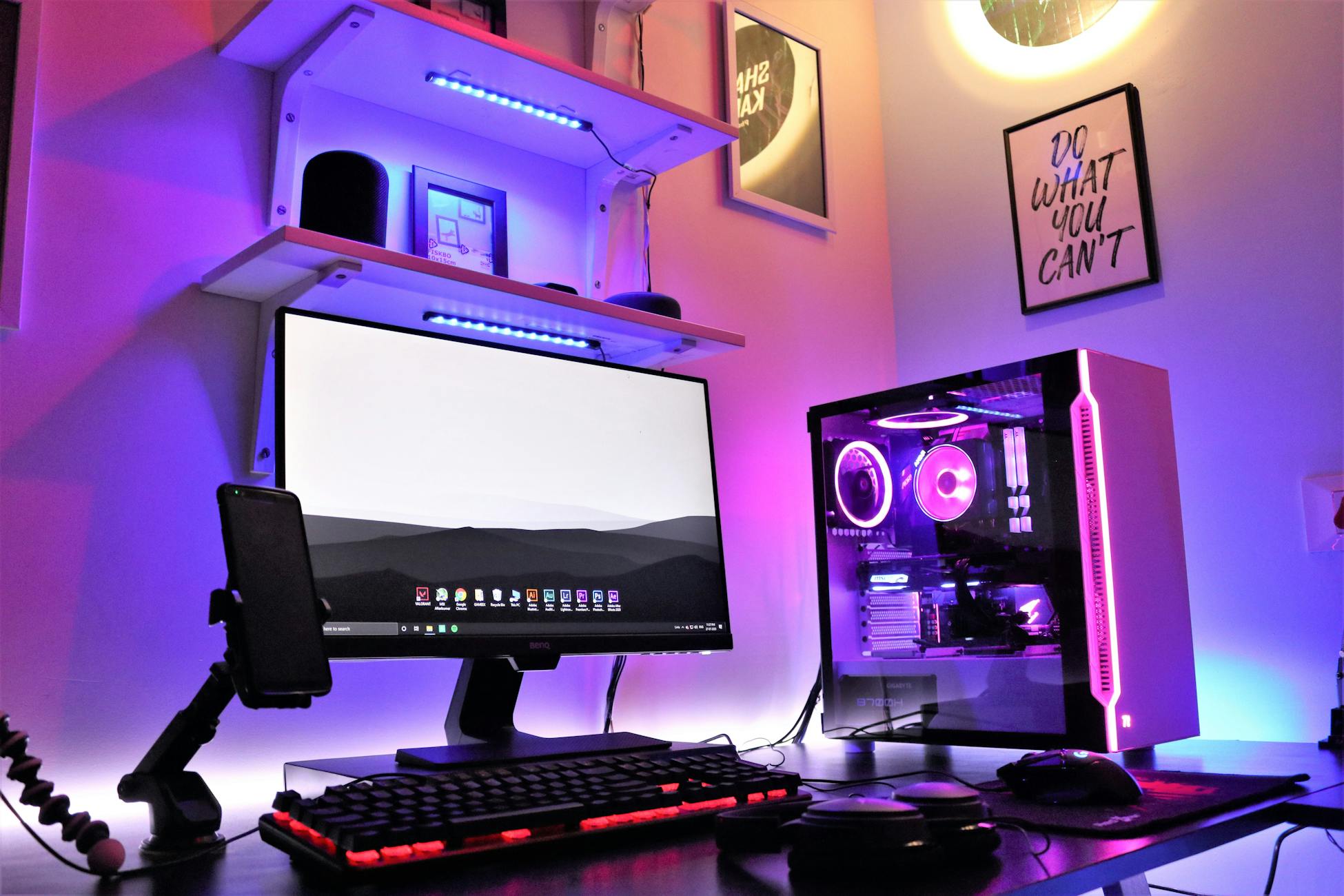
Are you tired of your computer running slow? It’s frustrating when your PC or laptop starts lagging, freezing, or taking forever to open programs and websites. Over time, every system slows down due to clutter, outdated software, and inefficient settings. The good news is that you don’t need to be a tech expert to fix it. With a few simple performance boost tips, you can make your computer feel fast and responsive again—almost like new.
1. Clean Up Your Computer
One of the first and easiest steps is cleaning up unnecessary files and programs. Temporary files, browser cache, old downloads, and unused applications can take up valuable storage space and slow down your system. Use built-in tools like Disk Cleanup or third-party cleanup software to regularly remove junk files. A cleaner system means faster performance and more available resources for the tasks you actually use.
2. Optimise Computer Speed
Startup programs are one of the biggest reasons for slow boot times. Many applications automatically launch when you turn on your computer, even if you don’t need them right away. Open your Task Manager and disable unnecessary startup items. This simple change can dramatically improve how quickly your computer starts and how smoothly it runs afterward.
3. Improve Windows Performance
Windows provides several built-in tools designed to improve system performance. Utilities like Disk Cleanup, Storage Sense and Task Manager help you monitor and manage your system more efficiently. Keeping your operating system updated is also crucial, as updates often include performance improvements, bug fixes, and security enhancements that keep your computer stable and fast.
4. System Optimisation Tips
System optimisation is all about maintaining your computer in top condition. Make sure your drivers are updated, especially graphics and chipset drivers, as outdated drivers can slow down performance. Adjust your power settings to “High Performance” mode if you need extra speed. You can also run system tools like System File Checker (SFC) to repair corrupted system files and improve stability.
5. Boost PC Speed with Hardware Upgrades
Sometimes software fixes are not enough, and a small hardware upgrade can make a huge difference. Adding more RAM allows your computer to handle multiple tasks at once without slowing down. Upgrading from a traditional hard drive (HDD) to a solid-state drive (SSD) can dramatically improve boot times and application loading speeds. These upgrades are among the most effective ways to boost overall performance.
6. Computer Maintenance Guide
Regular maintenance is key to long-term performance. Schedule antivirus scans to keep your system free from malware that can slow it down. Keep your software updated, remove unused programs, and restart your computer regularly to clear temporary system memory. Creating a simple maintenance routine helps prevent performance issues before they become serious problems.
7. Use Cloud Storage to Improve Performance
One often-overlooked way to improve computer performance is using cloud storage. Services like cloud storage allow you to move large files, photos, videos, and documents off your local hard drive and store them online instead. This frees up valuable disk space, which can significantly improve system speed and responsiveness.
Instead of keeping everything on your computer, you can access your files anytime through the internet without slowing down your device. Cloud storage also adds an extra layer of safety by automatically backing up your important data, protecting it from accidental deletion or hardware failure. Popular cloud solutions include services like Google Drive, OneDrive, and Dropbox, which make file management simple and efficient.
By applying these computer performance tips, you can speed up your PC, optimise system performance, and extend the life of your device. Whether it’s cleaning up files, upgrading hardware or using cloud storage, every small step contributes to a faster and more efficient computing experience. Don’t let a slow computer slow you down—take control and enjoy a smoother, more productive workflow.